CMD - Command Prompt
SLMgr - Commandes et Options pour Windows Product Key / KMS / Token / AD Activation
Syntaxe de SLMgr :
Options of SLMgr
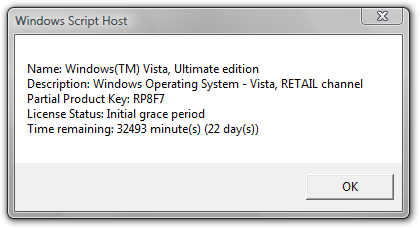
slmgr /dli (display the current license information of Windows with activation status and last 5 characters of partial product key)
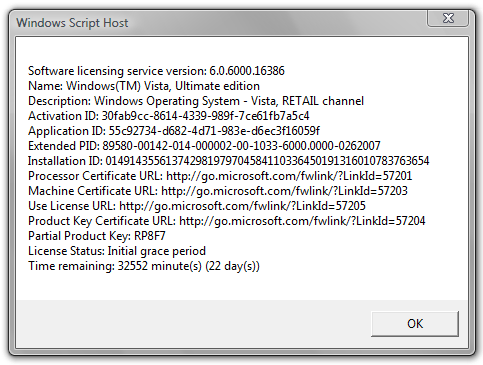
slmgr /dlv (stands for display license information, verbose, similar to -dli switch but with more detailed information)
slmgr /ipk <xxxxx-xxxxx-xxxxx-xxxxx-xxxxx> (enter a new or replace and change the current product key with the new product key supplied at xxxxx-xxxxx-xxxxx-xxxxx-xxxxx)
slmgr /xpr (shows expiration date of current license state if Windows Vista is not permanently activated)
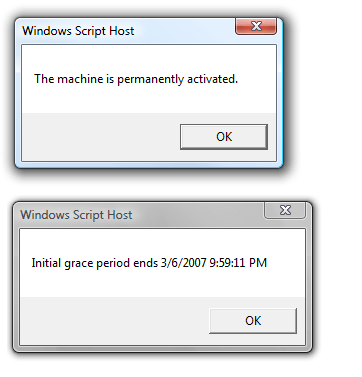
slmgr /ato (activate Windows Vista license and product key against Microsoft’s server)
slmgr /upk (uninstall current installed product key and return license status back to trial state)
slgmr /cpky (clear the product key from the registry to prevent disclosure attacks)
slmgr /ilc <license file> (install license)
slmgr /rilc (re-install system license files)
slmgr /rearm (reset the licensing status and activation state of the machine)
slmgr /rearm-app (reset the licensing status of the given app)
slmgr /rearm-sku (reset the licensing status of the given SKU)
The following options used with offline activation such as through phone:
slmgr /dti (display installation ID for offline activation)
slmgr /atp <confirmation ID> (activate product with user-provided Confirmation ID)
SLMgr options for Volume Licensing Activation Using KMS (Key Management Service):
slmgr /skms activationservername
slmgr /sprt <port>
slmgr /skms activationservername:port (set the KMS server and the port used for KMS activation for Windows Vista Business edition and Windows Vista Enterprise edition)
For example:
Or:
slmgr /ckms (clear the name of KMS server used to default and port to default)
slmgr /skms-domain <FQDN> (set the specific DNS domain in which all KMS SRV records can be found)
slmgr /ckms-domain (clear the specific DNS domain in which all KMS SRV records can be found)
slmgr /skhc (enable KMS host caching)
slmgr /ckhc (disable KMS host caching)
slmgr /sai <activation interval> (sets the interval in minutes for unactivated clients to attempt KMS connection.)
slmgr /sri <activation interval> (sets the renewal interval in minutes for activated clients to attempt KMS connection)
slmgr /sdns (enable DNS publishing by the KMS host)
slmgr /cdns (disable DNS publishing by the KMS host)
slmgr /spri (set the KMS priority to normal)
slmgr /cpri (set the KMS priority to low)
slmgr /act-type (set a value in the registry that limits volume activation to a single type: 1 for Active Directory; 2 for KMS activation; 3 for token-based activation; 0 for any activation type)
SLMgr Options for Token-based Volume Activation:
slmgr /lil (list installed Token-based Activation Issuance Licenses)
slmgr /ril <ILID> <ILvID> (remove installed Token-based Activation Issuance Licenses)
slmgr /ltc (list Token-based Activation Certificates)
slmgr /fta <Certificate Thumbprint> <PIN> (force Token-based activation)
SLMgr Options for Active Directory-based Activation:
slmgr /ad-activation-online <Product Key> (collect Active Directory data and initiates Active Directory forest activation using the credentials that the command prompt is running)
slmgr /ad-activation-get-IID <Product Key> (start Active Directory forest activation in phone mode)
slmgr /ad-activation-apply-cid <Product Key> <Confirmation ID> (complete activation through activation phone call)
slmgr /ao-list (display all of the activation objects that are available to the local computer)
slmgr /del-ao <AO_DN> (delete the specified activation object from the forest)
Note: If when you enter slmgr command and an error returns that ‘SLMgr’ is not a recognized internal or external command, the cause is due to \Windows\System32 directory is not inside your environment’s path. Simply type the full path of (assuming C: is Windows volume) C:\Windows\System32\slmgr, or change directory to %WinDir%\System32 before issuing the SLMgr command.