Windows
- CMD - Command Prompt
- Les raccourcis clavier
- Ajouter un dossier au PATH sous Windows
- Guide d'installation de WSL via la ligne de commande (CLI)
CMD - Command Prompt
SLMgr - Commandes et Options pour Windows Product Key / KMS / Token / AD Activation
Syntaxe de SLMgr :
Options of SLMgr
slmgr /dli (display the current license information of Windows with activation status and last 5 characters of partial product key)
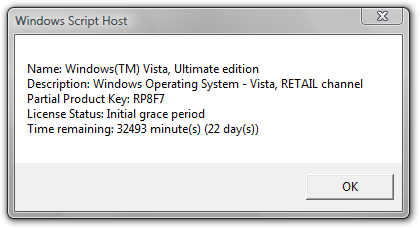
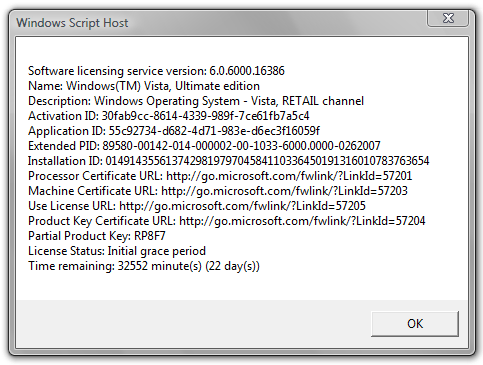
slmgr /dlv (stands for display license information, verbose, similar to -dli switch but with more detailed information)
slmgr /ipk <xxxxx-xxxxx-xxxxx-xxxxx-xxxxx> (enter a new or replace and change the current product key with the new product key supplied at xxxxx-xxxxx-xxxxx-xxxxx-xxxxx)
slmgr /xpr (shows expiration date of current license state if Windows Vista is not permanently activated)
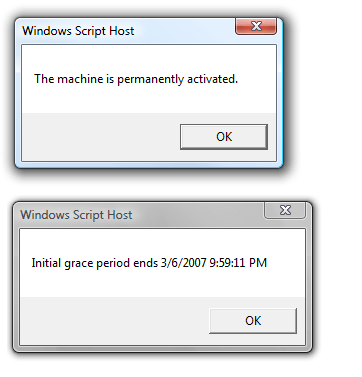
slmgr /ato (activate Windows Vista license and product key against Microsoft’s server)
slmgr /upk (uninstall current installed product key and return license status back to trial state)
slgmr /cpky (clear the product key from the registry to prevent disclosure attacks)
slmgr /ilc <license file> (install license)
slmgr /rilc (re-install system license files)
slmgr /rearm (reset the licensing status and activation state of the machine)
slmgr /rearm-app (reset the licensing status of the given app)
slmgr /rearm-sku (reset the licensing status of the given SKU)
The following options used with offline activation such as through phone:
slmgr /dti (display installation ID for offline activation)
slmgr /atp <confirmation ID> (activate product with user-provided Confirmation ID)
SLMgr options for Volume Licensing Activation Using KMS (Key Management Service):
slmgr /skms activationservername
slmgr /sprt <port>
slmgr /skms activationservername:port (set the KMS server and the port used for KMS activation for Windows Vista Business edition and Windows Vista Enterprise edition)
For example:
Or:
slmgr /ckms (clear the name of KMS server used to default and port to default)
slmgr /skms-domain <FQDN> (set the specific DNS domain in which all KMS SRV records can be found)
slmgr /ckms-domain (clear the specific DNS domain in which all KMS SRV records can be found)
slmgr /skhc (enable KMS host caching)
slmgr /ckhc (disable KMS host caching)
slmgr /sai <activation interval> (sets the interval in minutes for unactivated clients to attempt KMS connection.)
slmgr /sri <activation interval> (sets the renewal interval in minutes for activated clients to attempt KMS connection)
slmgr /sdns (enable DNS publishing by the KMS host)
slmgr /cdns (disable DNS publishing by the KMS host)
slmgr /spri (set the KMS priority to normal)
slmgr /cpri (set the KMS priority to low)
slmgr /act-type (set a value in the registry that limits volume activation to a single type: 1 for Active Directory; 2 for KMS activation; 3 for token-based activation; 0 for any activation type)
SLMgr Options for Token-based Volume Activation:
slmgr /lil (list installed Token-based Activation Issuance Licenses)
slmgr /ril <ILID> <ILvID> (remove installed Token-based Activation Issuance Licenses)
slmgr /ltc (list Token-based Activation Certificates)
slmgr /fta <Certificate Thumbprint> <PIN> (force Token-based activation)
SLMgr Options for Active Directory-based Activation:
slmgr /ad-activation-online <Product Key> (collect Active Directory data and initiates Active Directory forest activation using the credentials that the command prompt is running)
slmgr /ad-activation-get-IID <Product Key> (start Active Directory forest activation in phone mode)
slmgr /ad-activation-apply-cid <Product Key> <Confirmation ID> (complete activation through activation phone call)
slmgr /ao-list (display all of the activation objects that are available to the local computer)
slmgr /del-ao <AO_DN> (delete the specified activation object from the forest)
Note: If when you enter slmgr command and an error returns that ‘SLMgr’ is not a recognized internal or external command, the cause is due to \Windows\System32 directory is not inside your environment’s path. Simply type the full path of (assuming C: is Windows volume) C:\Windows\System32\slmgr, or change directory to %WinDir%\System32 before issuing the SLMgr command.
Les raccourcis clavier
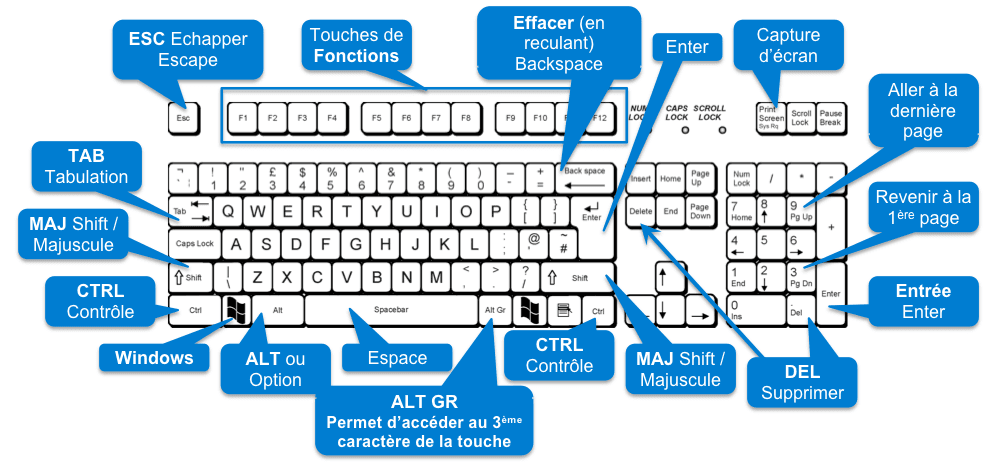
Général
Les indispensables
Les raccourcis clavier incontournables, à connaître absolument. Apprenez-les par cœur !
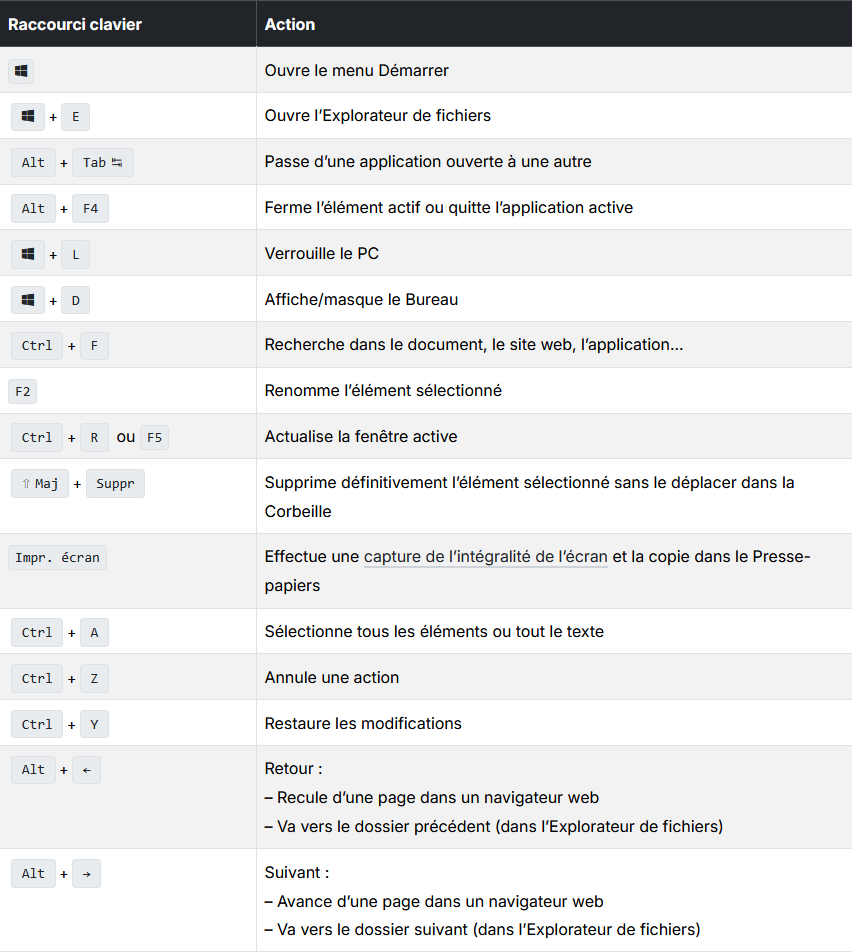
Les basiques
Toutes les raccourcis clavier basiques mais terriblement pratiques. La plupart d’entre eux pourrait vous changer la vie !
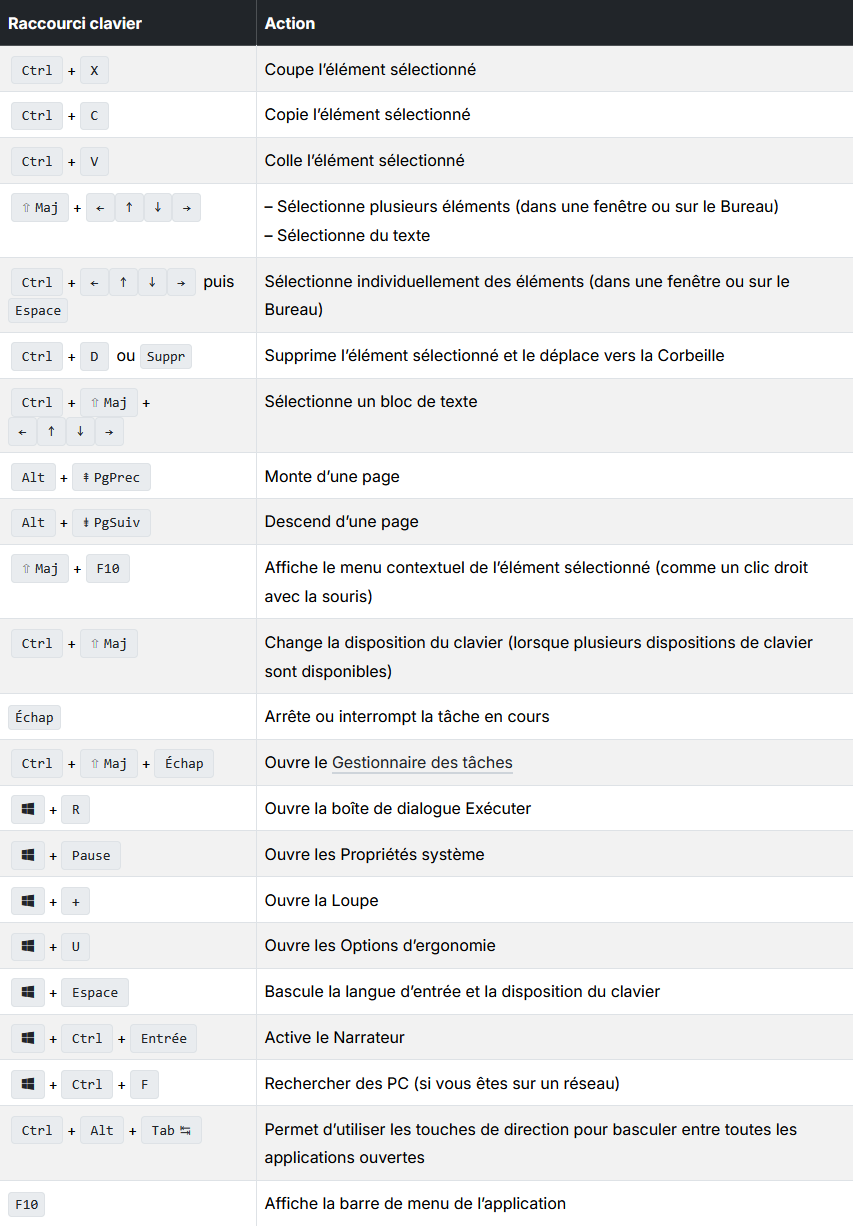
Les inconnus
Les raccourcis clavier dont vous ignorez sûrement l’existence. Très loin d’être indispensables mais amusants !
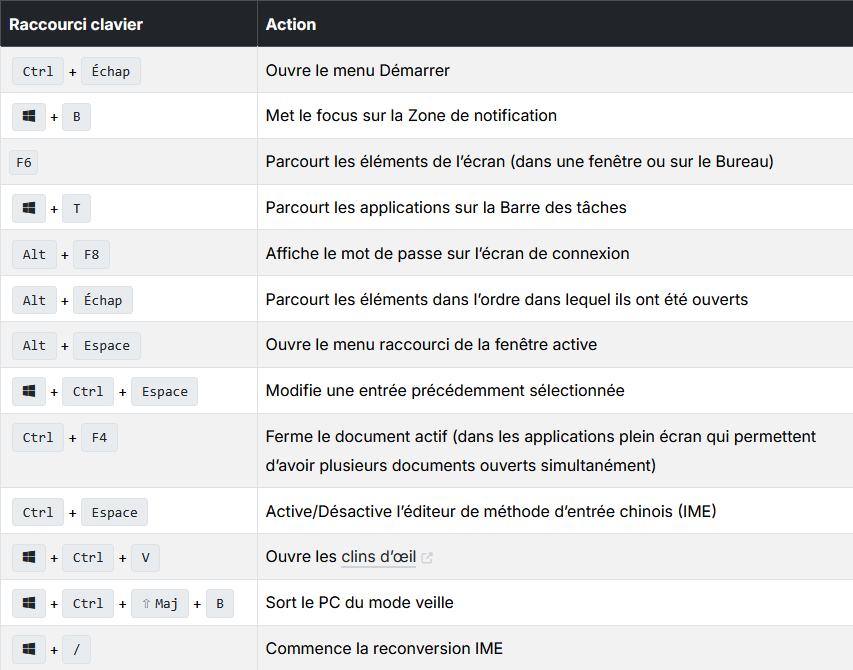
Windows Shell
Windows Shell est l’interface graphique de Windows. Constitué entre autres du Bureau, de la Barre des tâches, du Menu Démarrer ou encore du l’Explorateur de fichiers, nous interagissons quotidiennement avec elle.
Cette interface graphique regorge de raccourcis clavier très pratiques !
Explorateur de fichiers
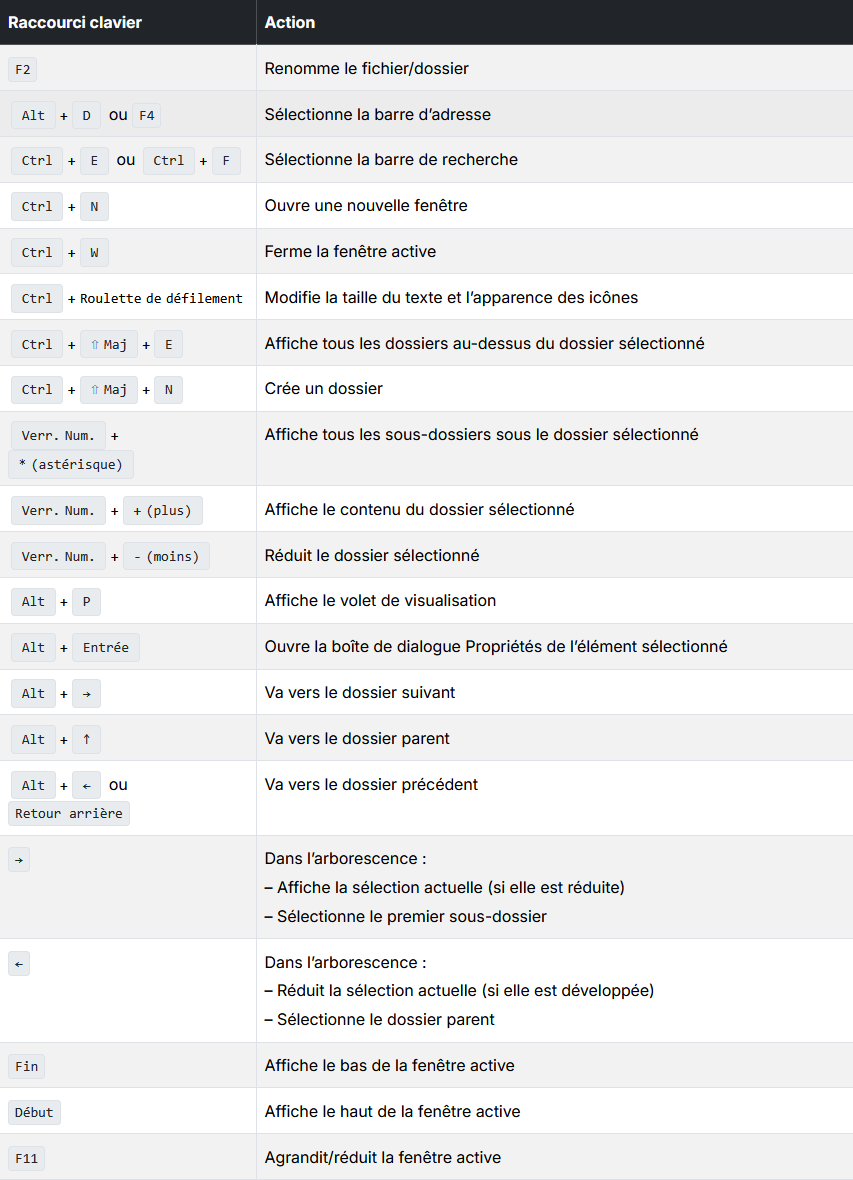
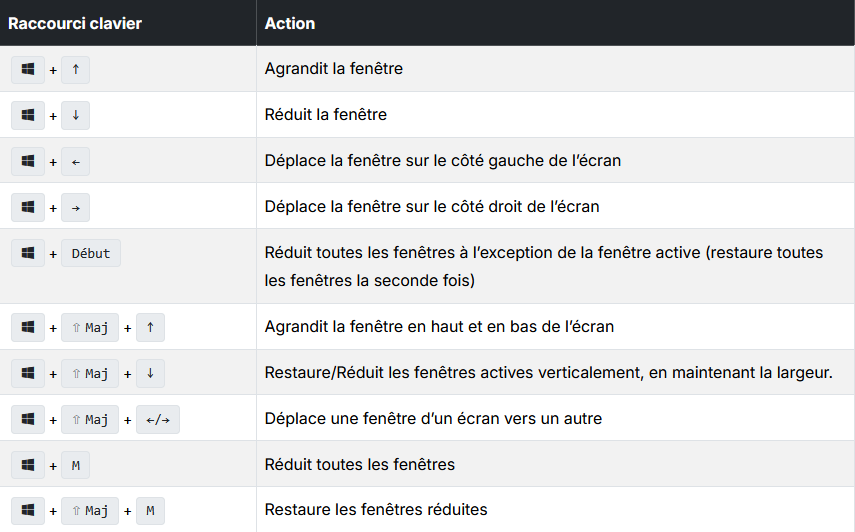
Fenêtres
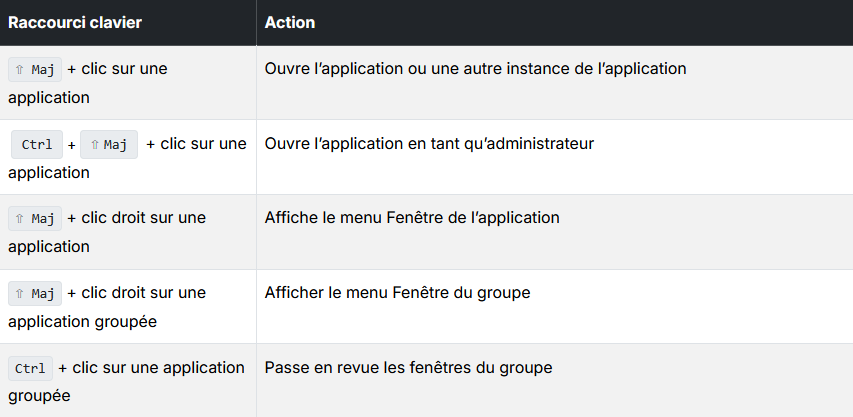
Barre des tâches
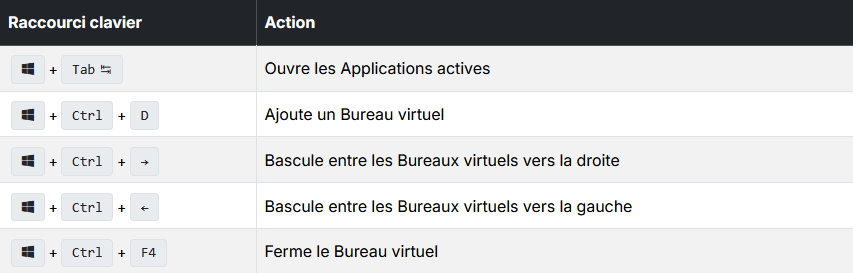
Bureaux virtuels
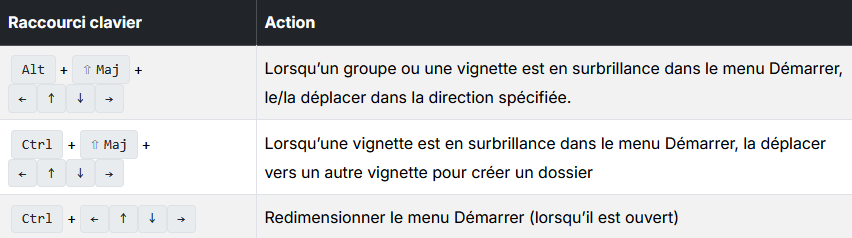
Menu Démarrer
Boîte de dialogue
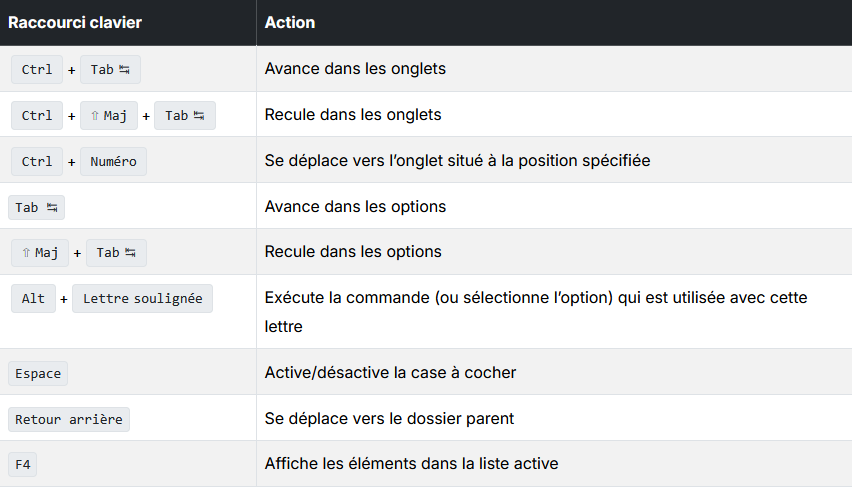
Spécifique
Tous les raccourcis clavier spécifiques à une version de Windows : Windows 10/11, Windows 8/8.1
Windows 10/11
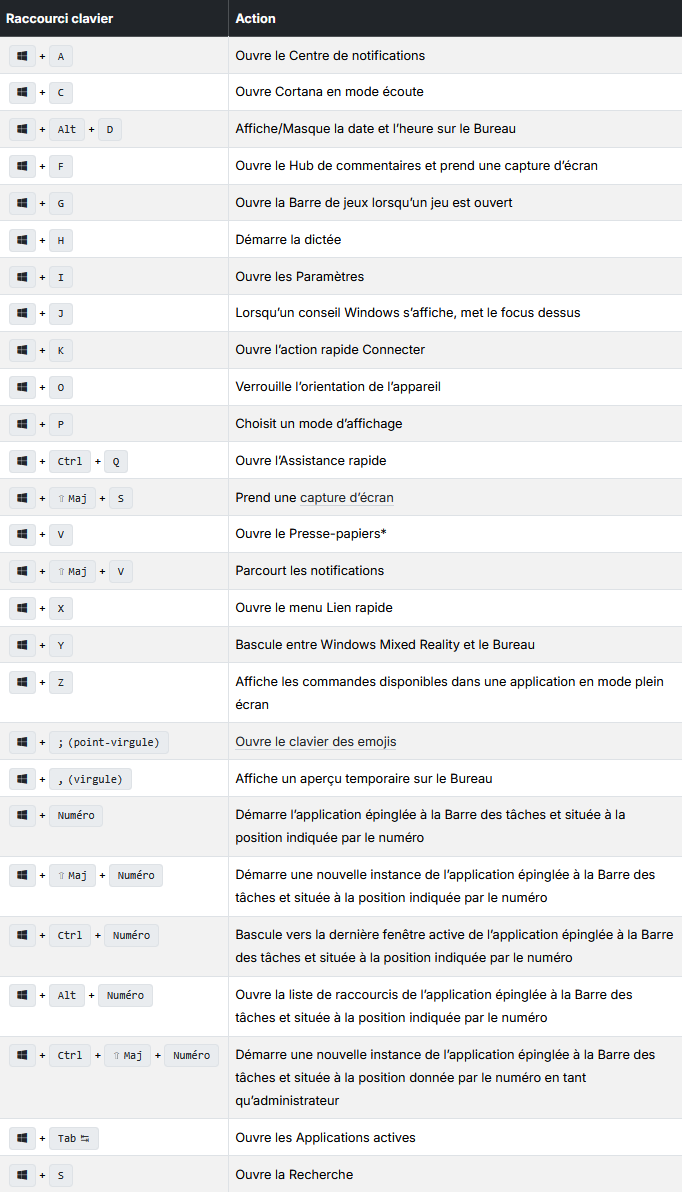
* Pour activer ce raccourci, sélectionnez Démarrer > Paramètres > Système > Presse-papiers puis activez Historique du Presse-papiers.
Windows 8
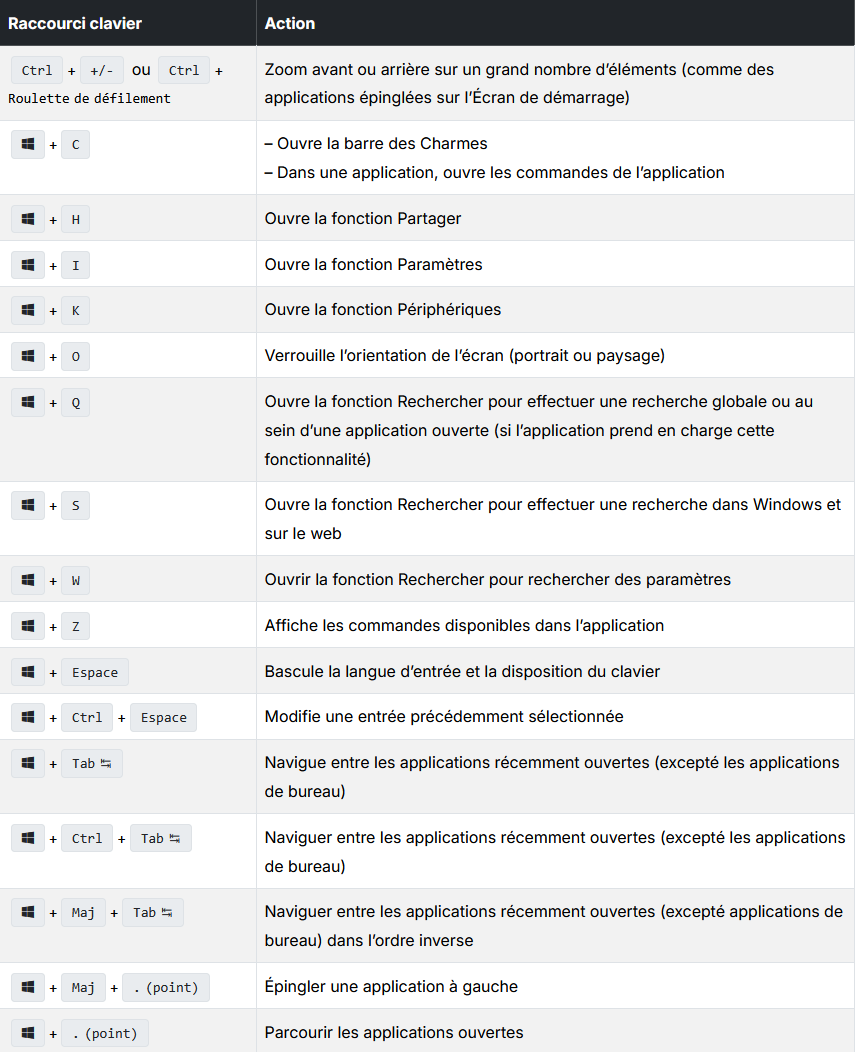
Ajouter un dossier au PATH sous Windows
Ce tutoriel explique comment ajouter un dossier contenant un exécutable (comme terraform.exe) au PATH Windows.
🧭 1. Préparer le dossier
Place ton exécutable dans un dossier, par exemple :
C:\tools\terraform\Avec à l'intérieur :
terraform.exe⚙️ 2. Ouvrir les variables d’environnement
- Appuyer sur
Windows + S - Rechercher variables d’environnement
- Cliquer sur Modifier les variables d’environnement système
- Cliquer sur Variables d’environnement…
🧩 3. Modifier la variable PATH
Option A — Utilisateur (recommandé)
- Dans Variables utilisateur
- Sélectionner
Path - Cliquer sur Modifier
Option B — Système
- Dans Variables système
- Sélectionner
Path - Cliquer sur Modifier
➕ 4. Ajouter le dossier
- Cliquer sur Nouveau
- Ajouter le chemin :
C:\tools\terraform- Cliquer sur OK pour valider
🔄 5. Tester
Important : ouvrir un nouveau terminal (cmd ou PowerShell)
terraform -vSi la version s’affiche, la configuration est correcte.
💡 Alternative PowerShell
Ajouter le PATH via PowerShell :
[Environment]::SetEnvironmentVariable(
  "Path",
  $env:Path + ";C:\tools\terraform",
  [EnvironmentVariableTarget]::User
)
🚨 Problèmes fréquents
- Ajouter
terraform.exeau lieu du dossier - Ne pas redémarrer le terminal
- Erreur dans le chemin
Guide d'installation de WSL via la ligne de commande (CLI)
Ce guide explique comment activer Windows Subsystem for Linux (WSL) et installer des distributions spécifiques (comme AlmaLinux ou Oracle Linux) en utilisant uniquement PowerShell.
Prérequis : Windows 10 (version 2004+) ou Windows 11, et une console PowerShell exécutée en tant qu'administrateur.
1. Activation et Installation de WSL
Si WSL n'est pas encore installé sur votre machine, la commande suivante active les fonctionnalités nécessaires et installe par défaut la distribution Ubuntu.
# Installation automatique (nécessite un redémarrage)
wsl --install
Si WSL est déjà présent mais que vous voulez simplement le mettre à jour :
wsl --update2. Rechercher les Distributions disponibles
Avant d'installer, listez les distributions officiellement supportées en ligne :
wsl.exe --list --online3. Installation d'une distribution spécifique
Pour installer une distribution proche de RHEL (comme AlmaLinux 9), utilisez le flag --install suivi du nom technique (NAME) trouvé à l'étape précédente.
Exemple pour AlmaLinux 9 :
wsl.exe --install AlmaLinux-9Exemple pour Oracle Linux 9.5 :
wsl.exe --install OracleLinux_9_5Une fois l'installation terminée, une nouvelle fenêtre s'ouvrira pour vous demander de créer un nom d'utilisateur et un mot de passe pour Linux.
4. Commandes de gestion essentielles
Voici les commandes utiles pour gérer vos instances Linux au quotidien :
- Lister les distributions installées :
wsl --list --verbose - Définir une distribution par défaut :
wsl --set-default <Nom> - Arrêter une distribution :
wsl --terminate <Nom> - Désinstaller une distribution :
wsl --unregister <Nom>
5. Accès aux fichiers
Vous pouvez accéder aux fichiers Linux depuis l'explorateur Windows en tapant ce chemin dans la barre d'adresse :
\\wsl$